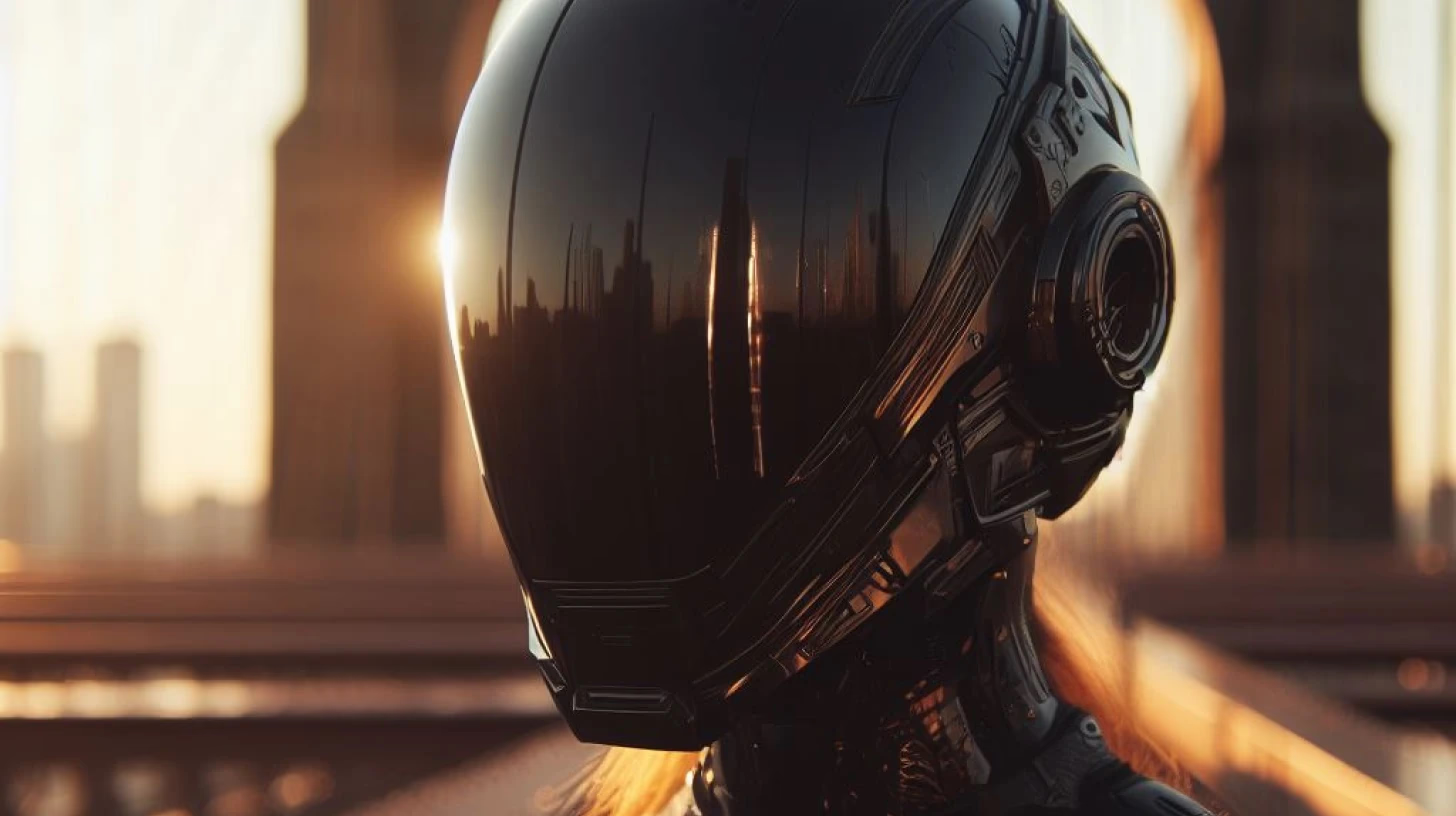
What is this DALL·E 3 and how can it be used??
DALL·E 3 is an artificial intelligence model created by OpenAI (yes, the same company that's behind ChatGPT) that is able to generate visual imagery based on textual instructions or prompts. DALL·E 3's older "sister" (or "brother") already existed before, but the updated version 3 is much more capable and versatile than the previous ones. Therefore, DALL·E 3 is increasingly offering strong competition to Midjourney, the current market leader, and is finding more and more applications in various fields, from creating artistic imagery to generating specific diagrams, illustrations or advertising materials. As you can read below, DALL·E 3 is not just a digital pencil, but allows users to visualize complex ideas quite easily, giving them the tools for graphical representation of concepts and narratives.
DALL·E 3 can be used by all ChatGPT Pro users or Bing Image Creator users.
In ChatGPT, DALL·E 3 looks like this:
, which can ultimately lead to visuals that do not meet the user's expectations.
For example, if a user enters the prompt "natural landscape", DALL·E 3 could generate anything from a desert vista to a mountainous terrain. On the other hand, an excessively long and detailed prompt can be equally constraining for DALL·E 3 and for the user themselves, as it leaves little room for creative surprise. Therefore, it is important to find a reasonable compromise that contains enough details to guide the system, while still allowing room for artistic flourishes.
Lack of constraints and/or context
Clearly defining context and constraints is also important. A prompt that lacks context or is too open-ended can result in unwanted or unpredictable images. For example, if you enter the prompt "dog with ball", DALL·E 3 may create an image where the dog is chewing on the ball, instead of catching it etc. Adding context and constraints, such as "a dog catching a flying ball at sunset", helps quickly create the desired visual.
Ambiguity of style and composition
When possible, it is important to specify the desired style and composition in the prompt. For example, the user may want an image done in watercolor technique or following a cubist style. If such details are not added, the resulting style and composition is unpredictable. In addition, it is always worth thinking through before writing the prompt whether the desired visual has important considerations around angle of view, lighting, and distance from the object. If so, then all instructions should be written down in the prompt as precisely as possible.
How to create better prompts for Dall-E3?
So how do you actually avoid these problems and generate better visuals? Below I outline some thoughts and if you want to start experimenting alongside reading, then log into ChatGPT or Bing Image Creator right away and start trying it out :)
The AI enerated visual is already pretty cool by itself, but often there is a desire to make the created image more interesting or improve some detail according to your wishes.
Here are some tips on how to do that better:
Be as precise as possible
If you have a clear vision in your mind of the desired result, describe it as precisely as possible. Precision does not usually imply the length of the text, but clearly articulated expectations. For example, instead of writing "bird on tree", you could say "blue bird sitting on an oak branch". This way you can be more certain that the generated image corresponds more closely to your expectations.
, portrait (1024x1792 pixels) or landscape format (1792x1024 pixels). For this, use the English or Estonian specifications in your prompt.
For example: "A meadow in spring bloom, in the morning mist, landscape format image".
Using variations
DALL·E 3 usually allows generating several different variations from the same prompt. If most of the generated visual is pleasing, but something catches the eye, then... Remember that if you use Dall-E3 through ChatGPT, ChatGPT itself already varies your prompts slightly.
Improving image resolution (upscaling)
If the generated image does not match the desired resolution, it can be upscaled using various image editing tools. Those with Adobe creative licenses can find upscaling for example in Adobe Lightroom. In addition, Topaz Labs' upscaler has received praise. I personally use open source software called SwinIR, which also gives very good results.
Summary
In summary, there are no special secret tricks in creating images with AI. Perhaps the most difficult part is articulating your vision into concrete wording. The classic "make this picture cooler!" does not help either a human designer or artificial intelligence.
Hopefully these few tips above will help you take your first steps and avoid some typical mistakes (which I've made myself), but to achieve the best results, you simply need to try and practice. :)
So, good luck experimenting and practicing!